Screen mirroring is only the entry point when debugging OpenHarmony or Android hardware. As the device count grows, productivity depends on whether discovery, state comparison, application installation, file transfer, runtime logs, and updates fit into the same workflow.
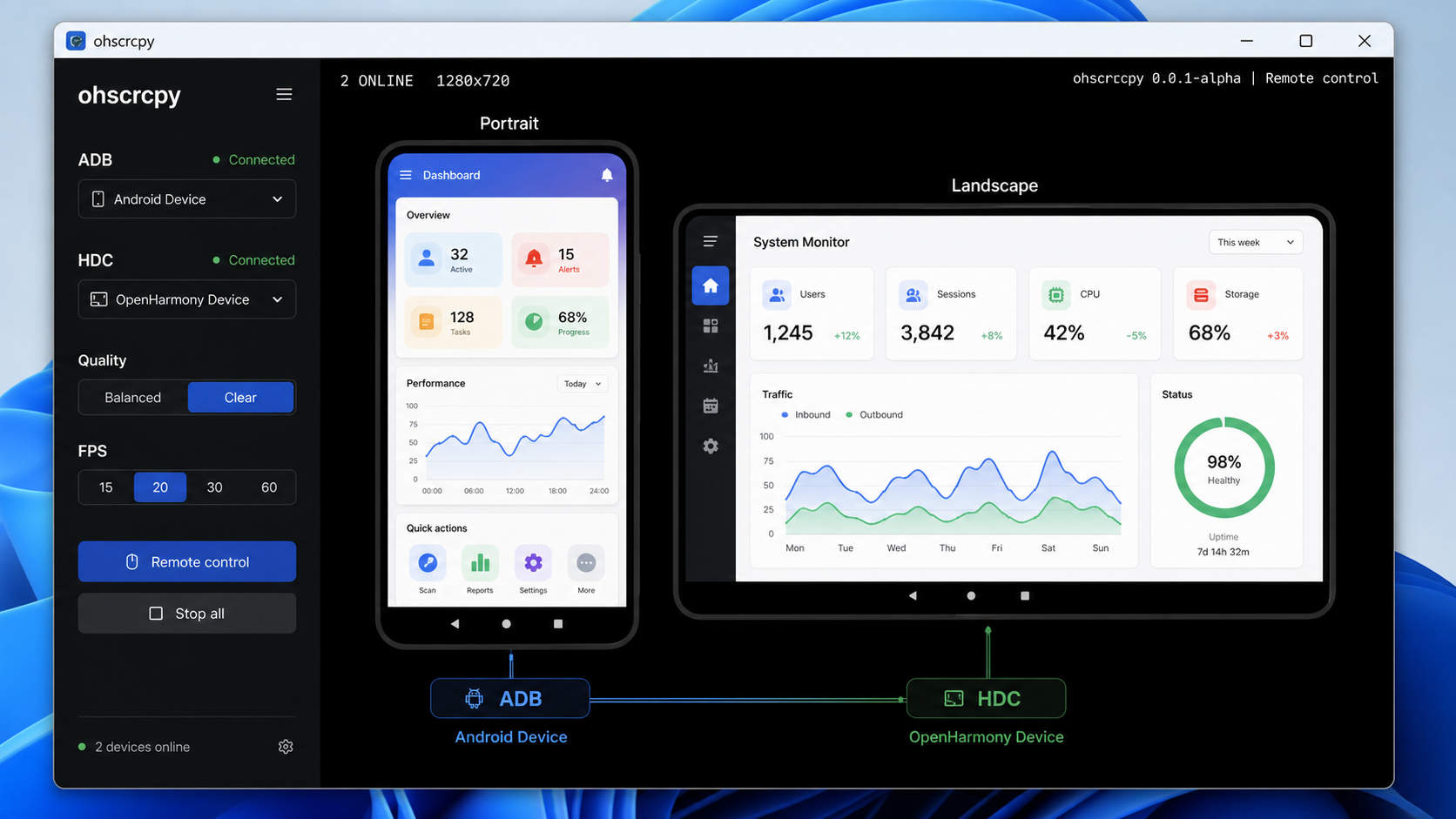
ohscrcpy 0.1.25 is a Windows workspace that brings Android ADB and OpenHarmony HDC devices into one Electron interface. It supports single- and multi-device mirroring, mouse and keyboard control, common device operations, runtime diagnostics, and in-app updates.
Download:
From a Unified Launcher to a Device Workspace
Early versions focused on the friction between ADB, HDC, and separate launcher arguments. The current interface covers more of the debugging loop:
- Discover and manage Android and OpenHarmony devices together.
- Save names and groups, then browse favorites, recent devices, or search results.
- Keep multiple remote screens open without allowing background sessions to replace the selected device.
- Install applications, manage application state, open a terminal, transfer files, or reboot from the device menu.
- Inspect Runtime logs, OHOS WebDebug status, and device resource information.
It is still not a full mobile device management system. The scope is the most common part of development, testing, and local-network device operation.
Download, Launch, and Update
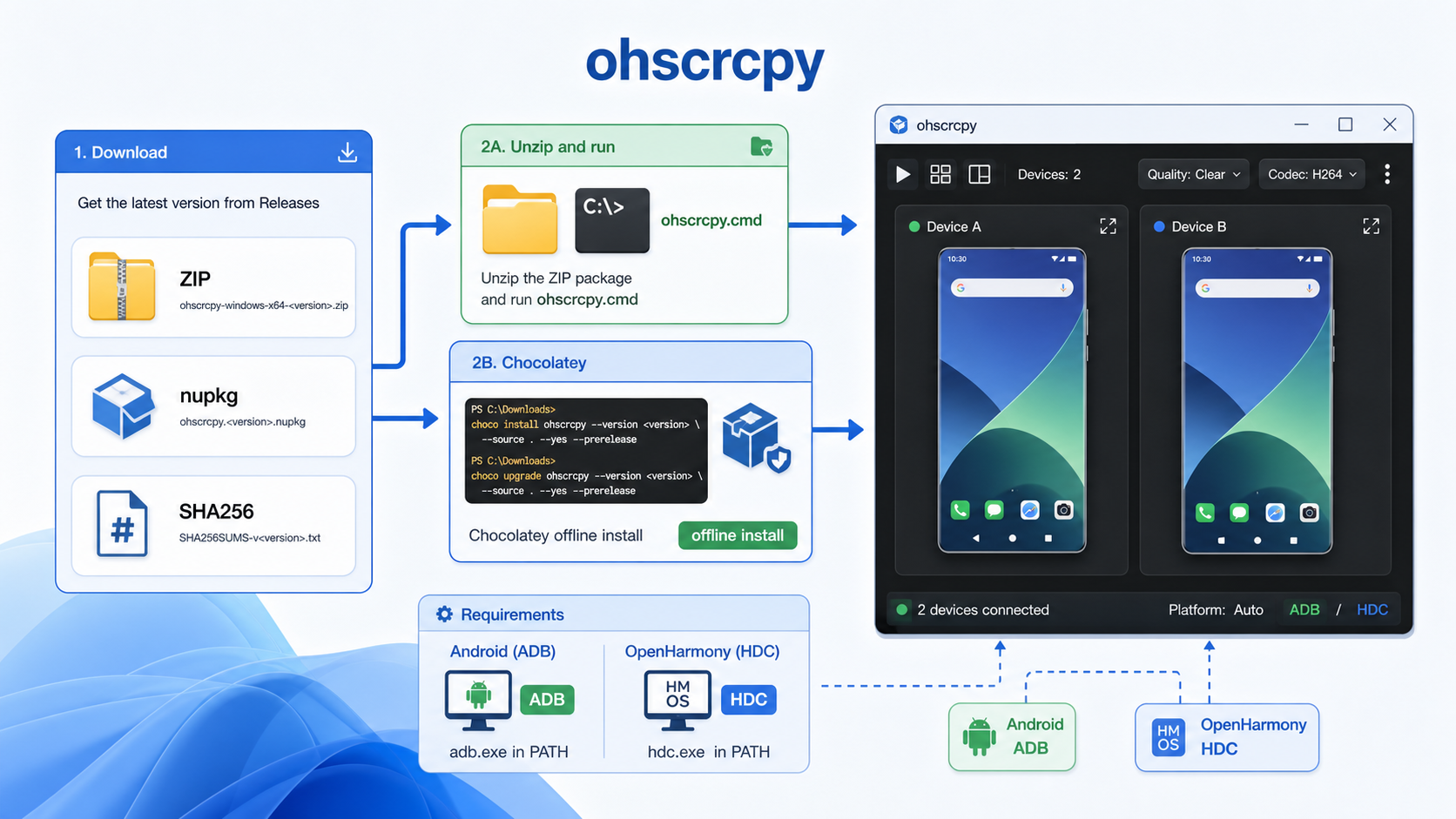
The 0.1.25 public release consists of the Windows ZIP and its checksum file:
ohscrcpy-windows-x64-0.1.25.zip
SHA256SUMS-v0.1.25.txt
After extracting the ZIP, there are three entry points:
ohscrcpy-start.exe: the recommended entry point for the Electron control interface, single-instance behavior, and updates.ohscrcpy.exe: keeps a console for device preparation, port forwarding, and error logs.ohscrcpyw.exe: a compatible no-console entry point for shortcuts or plugin integrations.
The built-in updater uses GitCode by default and tries GitHub when that source is unavailable. It downloads the Windows ZIP, verifies SHA256SUMS, backs up the current version, replaces the files, and restarts. A failed replacement is rolled back without relying on an external package manager.
Managing ADB and HDC Devices Together
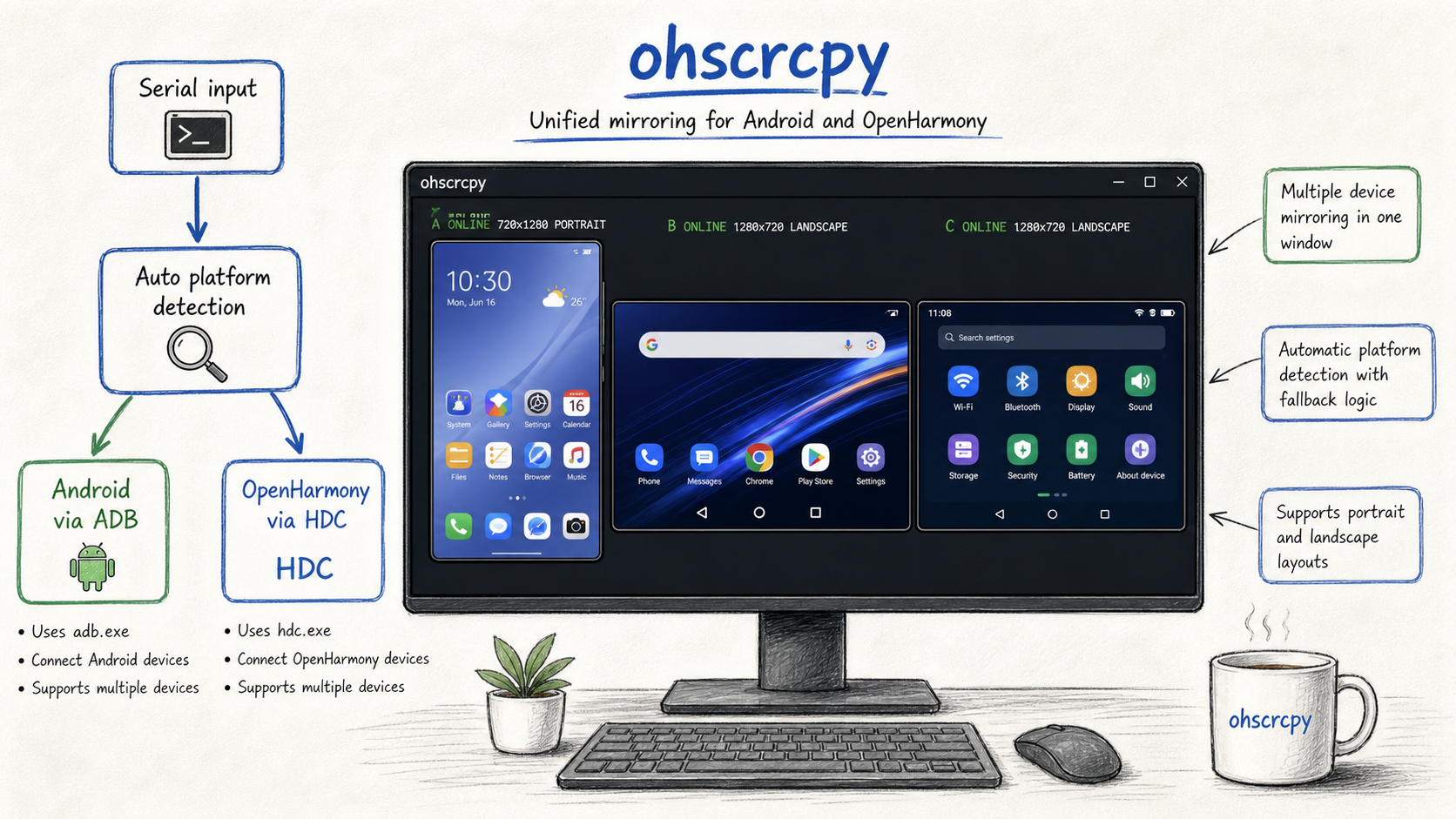
The device list displays saved metadata first, then refreshes live state from ADB and HDC in the background. Devices can have names, groups, and favorite status. Names may repeat, while network addresses remain unique to prevent duplicate records for the same device.
The default -Platform Auto mode checks both ADB and HDC:
- Select Android when the target is online only in ADB.
- Select OpenHarmony when it is online only in HDC.
- Prefer Android when the same serial is available through both.
- Select OpenHarmony when ADB is
offlineorunauthorizedand HDC is online.
Use -Platform Android or -Platform OHOS when a test needs a fixed path.
Multi-device Mirroring and Control
All visual mirroring is hosted by the Electron workspace. Multiple devices can remain visible in the video grid, each with independent quality, presentation rotation, and session state.
Common interactions include:
- Mouse click, long press, drag, and right-click Back.
- Physical keyboard input into the active device frame.
- Switching between the multi-device grid and a focused device view.
- Resizing the device list and Runtime logs panel, with double-click restore.
- Using automatic, video-stream, or screenshot compatibility paths for OpenHarmony.
The rotation action changes the Windows Canvas and input coordinate mapping only. It does not change device-side capture orientation.
Android supports UTF-8 text input. OpenHarmony currently supports English letters, digits, common symbols, Enter, Backspace, and arrow keys.
PNG Screenshots and WebM Recording
Version 0.1.25 adds PNG screenshots and WebM recording to the remote toolbar.
- Screenshots save the rotated device frame without application toolbars or empty UI space.
- Recording runs independently for each device session.
- Video chunks are written to a temporary file to reduce memory use during longer recordings.
- Stopping, restarting, rotating, or closing the application safely finalizes recording and asks where to save it.
Recording currently contains video only, without device audio.
Applications, Files, and Diagnostics
The device action menu covers common debugging tasks:
- Select or drop a HAP/APK package and follow installation progress.
- List applications and start, stop, or uninstall them.
- Open an SSH terminal or transfer files over SFTP.
- Reboot a device.
- Inspect OHOS WebDebug page discovery.
- Export a diagnostic ZIP when a remote session fails to start.
SSH, SFTP, and remote reboot require SSH to be enabled on the device with valid account, port, and password settings. Android connects to the device’s existing SSH service. OpenHarmony uses the packaged support path for a secured connection.
The WebDebug bridge listens only on local 127.0.0.1:9222. Chrome or DevChromeOH DevTools discovery remains a manual browser configuration; the application does not modify it automatically.
Command-line Usage
The graphical interface fits daily device management, while the console entry point remains useful for scripted startup and troubleshooting:
.\ohscrcpy.exe -Platform OHOS -s <ohos-device-serial> -q Clear
.\ohscrcpy.exe -Platform Android -s <android-device-serial>:5555 -q Clear
.\ohscrcpy.exe -m "<device-a>,<device-b>" -q Clear
.\ohscrcpy.exe -s <ohos-device-serial> -CaptureMode Screenshot
.\ohscrcpy.exe -s <device-serial> -DisplayRotation 270
Common arguments:
| Short | Full | Purpose |
|---|---|---|
-s | -Serial | One device serial |
-m | -Serials | Multiple comma-separated devices |
-p | -Platform | Auto, OHOS, or Android |
-q | -Quality | Balanced or Clear |
-c | -Codec | h264 or h265 |
-cm | -CaptureMode | OpenHarmony Auto, Video, or Screenshot |
-dr | -DisplayRotation | Local rotation: 0, 90, 180, or 270 |
-f | -Fps | Video frame rate |
-b | -Bitrate | Video bitrate |
Android Clear defaults to a maximum long edge of 1920, 20 fps, and 8 Mbps. A lower-resolution source remains at its native size and uses the higher bitrate to reduce compression artifacts.
Requirements and Product Boundaries
- Windows 10/11 x64 is the primary supported environment.
- OpenHarmony requires API 12 or newer and a working HDC tool; device servers are included for armv7 32-bit and aarch64 64-bit targets.
- Android requires a working ADB tool; the package uses a fixed, verified scrcpy-server 3.3.3.
- H.264 and H.265 video decoding are supported.
- Devices must expose the relevant debugging capability and be discoverable through ADB or HDC.
- Recording does not capture device audio.
In Settings, Android can use a managed ADB version, a manual path, or the system PATH. OpenHarmony can use a system HDC, a configured path, or the packaged hdc\hdc.exe.
Release and License
GitCode and GitHub provide the same Windows ZIP and SHA256SUMS. The package can be verified in PowerShell:
Get-FileHash .\ohscrcpy-windows-x64-0.1.25.zip -Algorithm SHA256The release is licensed under Apache License 2.0. The package includes the license, copyright notice, and third-party attribution files.